Pages

Wednesday, August 28, 2013

Bypass HTTPS or SSL Requirement for Citrix Receiver


For those of you doing POCs or Testing Lab, here's how to disable SSL or HTTPS requirement for Citrix Receiver.

To bypass SSL, open regedit.exe on the client workstation and go to:

For 64-bit 

     HKLM\software\wow64\citrix\authmanager

For 32-bit

     HKLM\software\citrix\authmanager

Create string with value: 


     ConnectionSecurtiyMode = Any
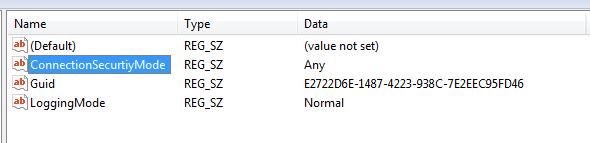


And also, go to:

For 64-bit

       HKLM\software\wow64\citrix\dazzle\AllowAddStore

For 32-bit

     HKLM\software\citrix\dazzle\AllowAddStore

And set the value to "A" and restart the receiver. 


This is also useful for those troubleshooting connection between Citrix Receiver and Xenapp Server. But take note though that this is not recommended for production environment since you are exposing the user's credentials in the network. 


Thursday, June 13, 2013

The installed version of SQL Server is not supported. Verify that the computer and installed version of SQL Server meet the minimum requirements for installation. Please see the Supported Configurations document for further information.

I got a very interesting error today while working with multiple SCOM 2012 Server across different data centers and here's what I got:


The installed version of SQL Server is not supported. Verify that the computer and installed version of SQL Server meet the minimum requirements for installation.  Please see the Supported Configurations document for further information.

Here's the scenario when I encountered the error:

1. Installed the first SCOM 2012 Server located on Data Center 1.
2. Installed second SCOM 2012 Server also on Data Center 1.
3. Installed third SCOM 2012 Server on Data Center 2 and enocuntered the error.

Here's the solutions that resolved the issue:

1. Make sure that the credentials used in installing SCOM 2012 have rights on the remote SQL Server.
2. Verify connectivity between Server and Remote SQL Server.
3. Check firewall ports on Remote SQL Server.
4. *this resolved my issue* Do a WBemTest from the Server to the Remote SQL Server. If you get "RPC Server Unavailable", it means that RPC Ports are blocked, either at the Remote SQL Server or your network firewall. Make sure to open RPC ports 135, 137, 139 and 445 to resolve this issue.

This error may be due to SCOM Setup unable to determine the version of SQL on the Remote Server and thus displaying the error message.

Wednesday, March 20, 2013

Wireless on Windows Server 2012

I've recently installed Windows Server 2012 on my laptop for testing and lab purposes and what do I get, I cannot connect to the wireless router!

So here's how to enable wireless networking on Windows Server 2012 (not recommended for production servers)

1. Go the Server Manager
2. Click Add Roles and Features
3. Go to Features List
4. Enable Wireless LAN Service
5. Add the Feature and restart


Saturday, March 2, 2013

Installing System Center Virtual Machine Manager (SCVMM) 2012 SP1


1.     Logon to the server using SCVMM Service Account.

2.     Download and install Windows Assessment and Deployment Toolkit (http://www.microsoft.com/en-us/download/details.aspx?id=30652)

3.     Start the installation wizard for SCVMM 2012 SP1.

4.     Under Select Features to install, select both Management Server and Console.

5.     Enter your Username and Organization and input the Product ID(if no product key was typed, SCVMM will go into evaluation mode).

6.     Accept the License Agreement.

7.     Confirm to join or not the Customer Experience Improvement Program (CEIP)

8.     Turn on/off the Microsoft Update

9.     Select default installation location.

10.   Verify Pre-Requisites.

11.   Under Database Configuration, input your SQL Server on Server Name, Port 1433 under Port, your SQL Instance for Instance Name and select New Database – VirtualManagerDB.

12.   Under Configure service account and distributed key management, select Domain Account and input your SCVMM Service Account and its password.

13.   Select default Port Configuration.

14.   Select default Library Configuration.

15.   Verify the Installation Summary and start the installation.


Saturday, February 16, 2013

Permissions for System Center Orchestrator runbooks

Okay, here's a good scenario on  System Center Orchestrator. You create a runbook that connects to a remote server. You tried to start/stop a service but it failed or gives you a warning or error. So how do you resolve this issue?

I've tried so many other ways as being told in other sites but the simplest thing worked out for me. 

Add the Orchestrator run as account as local administrator on remote server that the runbook is working with. And whoala, the runbook can now start/stop a service!

If you want to check other permissions required, check it out here.

Tuesday, February 12, 2013

Free Microsoft Jacket! Join the MCSA Challenge!

Limited edition jacket for those who are taking the MCSA Certfications. See image below for more details. (Upgrade certifications are not accepted; you must take the entire set of exams to qualify)


Visit Microsoft Partners Philippines for more details.